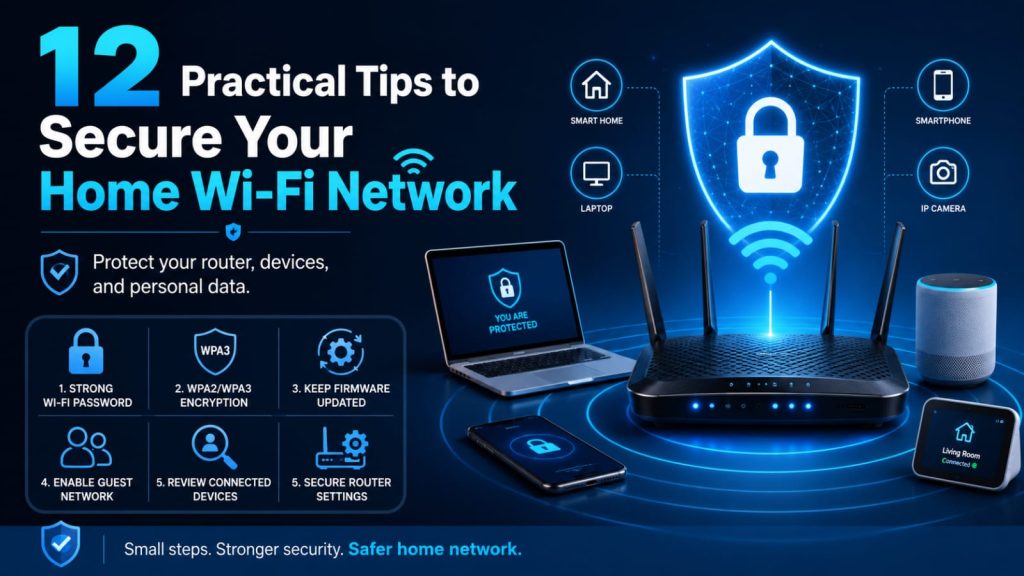

Home Wi-Fi has become the foundation of everyday digital life. Smartphones, laptops, smart TVs, security cameras, gaming consoles, tablets, and smart home devices may all depend on the same wireless network.
Because so many devices connect through one router, protecting your Wi-Fi network is an important part of protecting your personal information. A poorly configured network may make it easier for unauthorized users to access your internet connection, interfere with connected devices, or take advantage of outdated equipment.
You do not need to be a networking expert to improve Wi-Fi security. A few practical changes can make your home network significantly safer. This guide explains twelve useful steps that most users can understand and apply.
1. Change the Default Router Administrator Password
When a new router is installed, it may come with a default administrator username and password. These credentials are used to access the router’s settings page.
Leaving the default administrator password unchanged can create unnecessary risk, especially when default credentials for a router model are widely known.
After setting up your router, create a strong and unique administrator password that you do not use for other accounts.
Your router administrator password should be different from the password people use to connect to Wi-Fi.
Why This Matters
The router’s administration panel may allow someone to change important settings, including Wi-Fi passwords, DNS configuration, connected devices, security options, and network access rules.
Protecting this account is therefore just as important as protecting other sensitive online accounts.
2. Use a Strong Wi-Fi Password
Your wireless network should use a password that is long, unique, and difficult to guess.
Avoid using obvious information such as:
- Your phone number
- Your home address
- Your name
- Your family name
- Your birthday
- Simple sequences such as 12345678
- Common words such as password or welcome
A longer passphrase made from unrelated words can be easier to remember while remaining difficult for someone else to predict.
Do not reuse the same password you use for email, social media, online banking, or other important accounts.
3. Use Modern Wi-Fi Encryption
Wi-Fi encryption helps protect information transmitted between your devices and your wireless router.
Modern routers may support security standards such as WPA2 and WPA3. When available and compatible with your devices, use a modern security option rather than older standards.
Avoid outdated options such as WEP, which no longer provide appropriate protection for a modern home network.
If your router supports WPA3 and all of your important devices work properly with it, it may provide additional security improvements. Some households may use a WPA2/WPA3 compatibility mode when older devices are still present.
4. Keep Your Router Firmware Updated
Routers are computers designed specifically for managing network traffic, and like other software-based devices, they may receive security updates.
Router manufacturers may release firmware updates to fix vulnerabilities, improve stability, or add security features.
Log in to your router’s administration panel occasionally and check whether updates are available.
Some newer routers can install firmware updates automatically. If your router offers reliable automatic security updates, enabling that feature can make maintenance easier.
What If Your Router No Longer Receives Updates?
If the manufacturer has stopped providing security updates for an old router, consider whether replacing the device is appropriate.
Using unsupported network equipment for many years may leave known vulnerabilities unresolved.
5. Change the Default Wi-Fi Network Name
Your wireless network name is commonly known as the SSID.
Many routers arrive with a network name that contains the manufacturer’s name or model information.
Changing the default SSID can prevent unnecessary information about your equipment from being immediately visible.
Choose a neutral network name that does not reveal:
- Your full name
- Your apartment number
- Your exact address
- Your phone number
- Other sensitive personal information
Changing the SSID is not a major security defense by itself, but it is a simple privacy improvement.
6. Disable WPS If You Do Not Need It
Wi-Fi Protected Setup, commonly called WPS, was designed to make it easier to connect devices to a wireless network.
Depending on the router, WPS may allow connection through a button or PIN-based method.
If you do not use WPS, disabling it can remove an unnecessary connection method from your network.
The exact setting varies between router brands, so check your router’s documentation before making changes.
7. Create a Guest Wi-Fi Network for Visitors
Many modern routers allow you to create a separate guest network.
A guest network lets visitors access the internet without giving them the password for your main home network.
This can also help separate visitors’ devices from computers or other devices containing important personal information.
When configuring guest Wi-Fi:
- Use a separate password
- Disable guest access to local devices when appropriate
- Change the guest password periodically if many people have received it
- Turn the guest network off when you no longer need it
8. Separate Smart Home Devices When Possible
Modern homes may contain internet-connected cameras, speakers, televisions, doorbells, appliances, lights, and other smart devices.
These devices can be convenient, but their security quality may vary significantly between manufacturers.
If your router supports separate networks, VLANs, or an isolated IoT network, you may be able to keep smart devices separated from computers and phones containing sensitive information.
For less technical users, a guest network can sometimes provide a simpler way to separate certain devices, depending on the router’s configuration.
9. Review Connected Devices Regularly
Most modern routers provide a list of devices currently connected to the network.
Checking this list occasionally can help you identify equipment you recognize and detect unfamiliar devices.
A connected-device list may display information such as:
- Device name
- IP address
- MAC address
- Connection type
- Current network activity
Some device names may appear unfamiliar even when they belong to you, so investigate carefully before assuming that an unknown-looking entry is an intruder.
If you confirm that an unauthorized device is connected, change your Wi-Fi password and review your router security settings.
10. Turn Off Remote Router Administration Unless You Need It
Some routers allow their administration panel to be accessed from outside the home network.
This can be useful in certain situations, but most home users do not need remote administration.
If the feature is enabled unnecessarily, turning it off can reduce exposure of the router’s management interface to the internet.
If you genuinely need remote administration, follow the manufacturer’s recommended security practices and use strong authentication.
11. Protect Every Device Connected to Your Wi-Fi
A secure router is only one part of home network security.
Computers, smartphones, tablets, smart TVs, and other connected devices should also be maintained properly.
Basic device security includes:
- Installing operating system updates
- Updating applications
- Using screen locks
- Removing unused applications
- Downloading software from trusted sources
- Using strong account passwords
- Enabling multi-factor authentication where available
A compromised device can create problems even when the Wi-Fi network itself is configured correctly.
12. Restart and Review Your Router Periodically
Routers are often installed and then ignored for years.
It is a good idea to review your router configuration periodically and make sure important settings remain appropriate.
During your review, check:
- Firmware update status
- Wi-Fi encryption settings
- Connected devices
- Guest network access
- Administrator settings
- Remote management settings
- DNS settings
Restarting a router occasionally may resolve temporary performance issues, although restarting by itself should not be considered a replacement for security updates or proper configuration.
Should You Hide Your Wi-Fi Network Name?
Some routers offer an option to hide the SSID so that the network does not appear normally in a list of nearby networks.
Hiding the network name may make it less visible to casual users, but it should not be treated as an important security measure.
A strong password and modern encryption provide much more meaningful protection.
You should not rely on a hidden network as a substitute for proper Wi-Fi security.
Should You Change Your Wi-Fi Password Regularly?
You do not necessarily need to change a strong Wi-Fi password every few weeks simply because time has passed.
However, changing it is a good idea when:
- You believe someone unauthorized knows the password
- You previously shared it with many people
- A former household member should no longer have access
- You used a weak password
- You recently discovered suspicious connected devices
After changing the Wi-Fi password, you will normally need to reconnect your trusted devices using the new credentials.
What Should You Do If You See an Unknown Device?
First, confirm that the device does not belong to your household.
Smart TVs, streaming devices, printers, security cameras, and other equipment sometimes appear under unfamiliar names.
If you are confident that an unauthorized device has connected to your network, consider taking the following steps:
- Change your Wi-Fi password
- Use WPA2 or WPA3 encryption
- Disable WPS if it is unnecessary
- Review router administrator access
- Check for firmware updates
- Reconnect only trusted devices
Protect the Account Connected to Your Router
Many newer routers can be managed through a mobile application or cloud account.
If your router uses an online account, secure that account carefully.
Use:
- A unique password
- Multi-factor authentication when available
- A secure recovery email address
- Updated recovery information
An online router-management account may provide significant control over your network, so it deserves the same attention as other important digital accounts.
Be Careful When Buying a Used Router
If you purchase or receive a second-hand router, reset it properly before using it.
A factory reset removes many previous settings, allowing you to configure the device from the beginning.
After resetting the router:
- Install available firmware updates
- Create a new administrator password
- Create a new Wi-Fi password
- Configure modern encryption
- Review remote administration settings
- Check DNS and network settings
Why DNS Settings Are Worth Checking
The Domain Name System, or DNS, helps devices translate website names into network addresses.
Your router may automatically use DNS servers provided by your internet service provider, or it may be configured to use another trusted DNS service.
If router settings are changed without your permission, unusual DNS configuration can potentially redirect browsing activity in undesirable ways.
You do not need to change DNS settings simply for the sake of changing them, but it is useful to confirm that the configured servers are ones you recognize or intentionally selected.
Do You Need Expensive Networking Equipment?
Good security does not always require the most expensive router available.
For many households, a well-supported router with current firmware, strong encryption, good password protection, and regular updates can provide a solid foundation.
When choosing a new router, consider factors such as:
- How long the manufacturer provides security updates
- Support for modern Wi-Fi security
- Automatic firmware updates
- Guest networking
- Device management features
- Parental or access controls if needed
Common Home Wi-Fi Security Mistakes
Many wireless security problems result from simple configuration mistakes.
Common examples include:
- Keeping the default administrator password
- Using a weak Wi-Fi password
- Using outdated encryption
- Ignoring router firmware updates
- Sharing the main Wi-Fi password with everyone
- Leaving unnecessary remote administration enabled
- Never reviewing connected devices
- Continuing to use unsupported routers
A Simple Home Wi-Fi Security Checklist
Use this checklist when reviewing your network:
- Create a unique router administrator password
- Use a strong Wi-Fi password
- Enable WPA2 or WPA3 security
- Update router firmware
- Disable unnecessary WPS
- Create a guest network when appropriate
- Review connected devices
- Disable unnecessary remote administration
- Update computers and smartphones
- Review router settings periodically
Frequently Asked Questions
How do I know if my Wi-Fi is secure?
Check that your network uses modern encryption such as WPA2 or WPA3, has a strong password, and runs updated router firmware. You should also review connected devices and administrator settings.
Can someone use my Wi-Fi without my permission?
Unauthorized access is possible when a network uses weak credentials, outdated security, or exposed configuration. Strong encryption and a unique password greatly reduce this risk.
Is WPA3 better than WPA2?
WPA3 includes newer security improvements, but device compatibility can vary. If your router and devices support WPA3 properly, it can be a good option. WPA2 remains widely used on compatible networks.
Should I turn my router off every night?
Turning a router off every night is not normally required for basic network security. Keeping the device updated and properly configured is more important.
Can changing the Wi-Fi password disconnect hackers?
Changing the password can disconnect devices that no longer know the new credentials. If you suspect unauthorized access, also review encryption, router settings, firmware, and administrator security.
Is guest Wi-Fi safer for visitors?
A properly configured guest network can keep visitors separate from your main network and prevents you from having to share your primary Wi-Fi password.
How often should I update my router?
Install security updates when the manufacturer releases them. If your router supports automatic firmware updates, consider enabling the feature. If the device is no longer supported, replacing it may eventually be appropriate.
Final Thoughts
Your home Wi-Fi network connects many of the devices you use every day, which makes router security an important part of overall online safety.
Fortunately, most households can improve their protection without complicated technical changes. A strong administrator password, secure Wi-Fi credentials, modern encryption, updated firmware, guest networking, and regular device reviews can address many common risks.
Spend a few minutes reviewing your router today. Small improvements to your network configuration can help protect your devices, personal information, online accounts, and digital activity for the long term.